
Sooner or later, someone asks the question every SIS engineer knows: can we test that less often?
Maybe turnarounds are moving to a longer cycle and a set of devices can only be tested with the unit down. Maybe the maintenance budget is being cut. Maybe operations wants fewer bypasses, since every test that pulls a device out of service leaves a gap in protection. The question is fair, but the answer has to be right: each safety function must still deliver the risk reduction it was designed for.
The Test Interval Optimizer in Kenexis® SIS, part of the Kenexis Integrated Safety Suite, is built to answer that question. With the new Export to Excel, the answer can go straight to the people who have to approve it.
The Problem: Trial and Error, Then a Memo
Working out a longer interval by hand is repetitive. You lengthen a device’s interval, recalculate the average probability of failure on demand (PFDavg) and check it against the target. Then you remember the transmitter also serves two other functions, so you check those too, and then you try the next step. Across dozens of functions and hundreds of devices, that loop takes a long time, and every manual pass is another chance for a transcription error.
Getting the engineering right is only half the job. The result then has to reach a maintenance planner, an operations manager, a management-of-change (MOC) reviewer and often the client, and most of them will never open the SIL calculation. Too often that step means a screen-share, a pasted table, or a memo rebuilt by hand from the calculation tool.
The Test Interval Optimizer: Let the Engine Do the Search
Kenexis® SIS already holds everything the question depends on: every instrumented protective function (IPF), its required risk reduction factor (RRF), its sensors, logic solver and final elements, and their failure data and voting. The Test Interval Optimizer uses all of it.
Setting up a run takes three steps:
- Select the functions to evaluate from the IPF list.
- Set the constraints: the minimum and maximum test interval and the step size, in months, plus the device categories the optimizer may adjust (sensors, logic solvers, final elements).
Click Run Optimization.
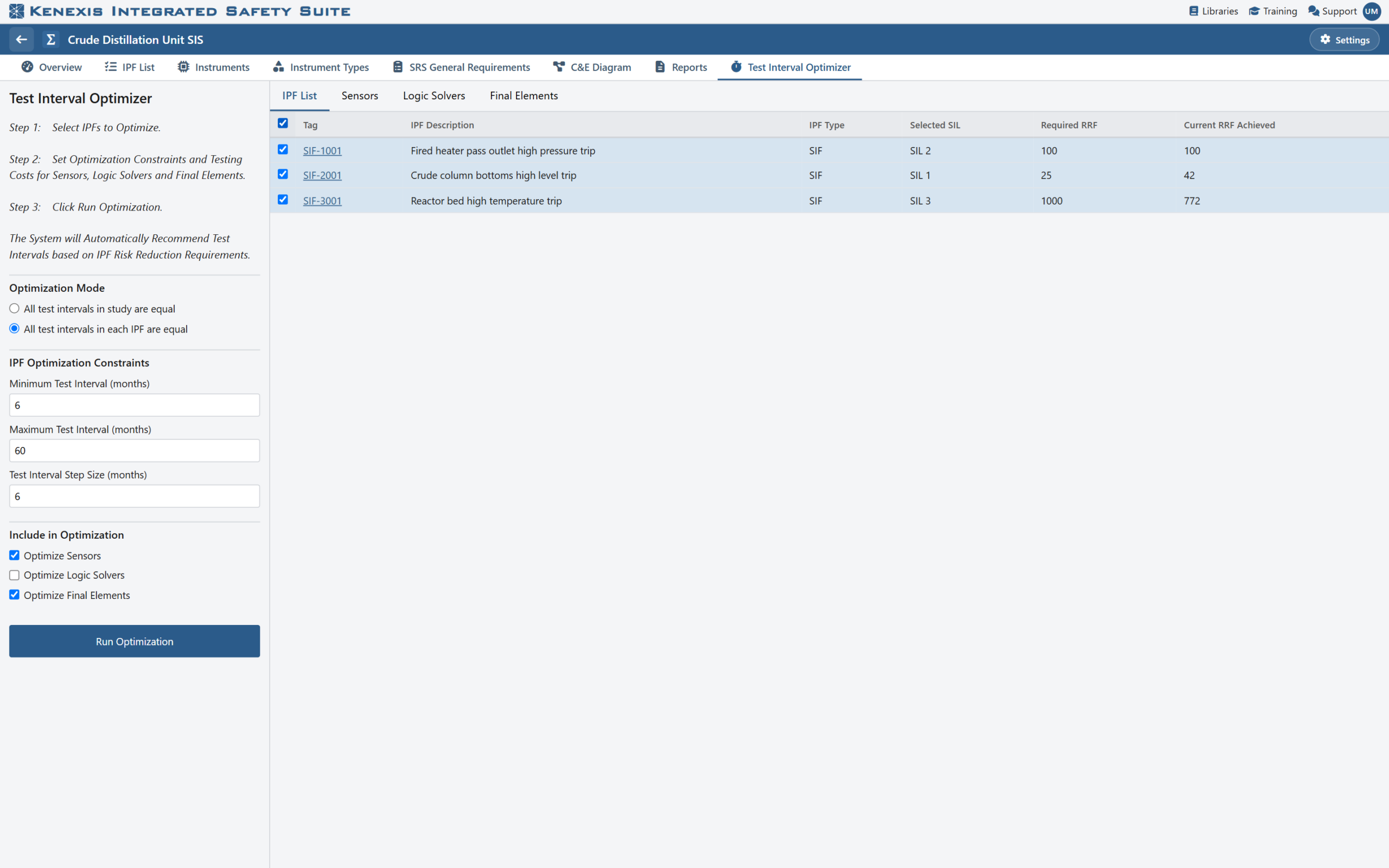
Setting up a run: select the functions, choose the strategy and the interval constraints, and pick the device categories the optimizer may adjust.
The optimizer starts at your maximum interval and works down one step at a time. At each step it applies the candidate interval, recalculates with the same PFD engine your study uses, and checks each function against its target: the function passes when its PFDavg is at or below one over its required RRF. The search stops at the longest interval that keeps every selected function passing, or at your minimum.
It offers two strategies, because sites schedule testing differently:
- All test intervals in study are equal: one common interval for every optimized device. This suits a site that wants a single, simple test schedule.
- All test intervals in each IPF are equal: each function’s devices share an interval, optimized function by function. A device shared between functions keeps the interval required by the most demanding one, so no function is quietly short-changed.
The search runs in both directions. If a function misses its target at its current intervals, the same run shows how much more often its devices need testing, down to your minimum. Devices the optimizer can’t evaluate, such as those modeled with black-box data, are listed with the reason.
Results You Can Read at a Glance
Results appear side by side. For every selected function you see the current and optimized achieved RRF, colored green where the target is met and red where it isn’t. For every device you see the current and recommended test interval, with the functions it serves rolled up beneath it. Highlight Devices jumps from a function to exactly the devices it affects.
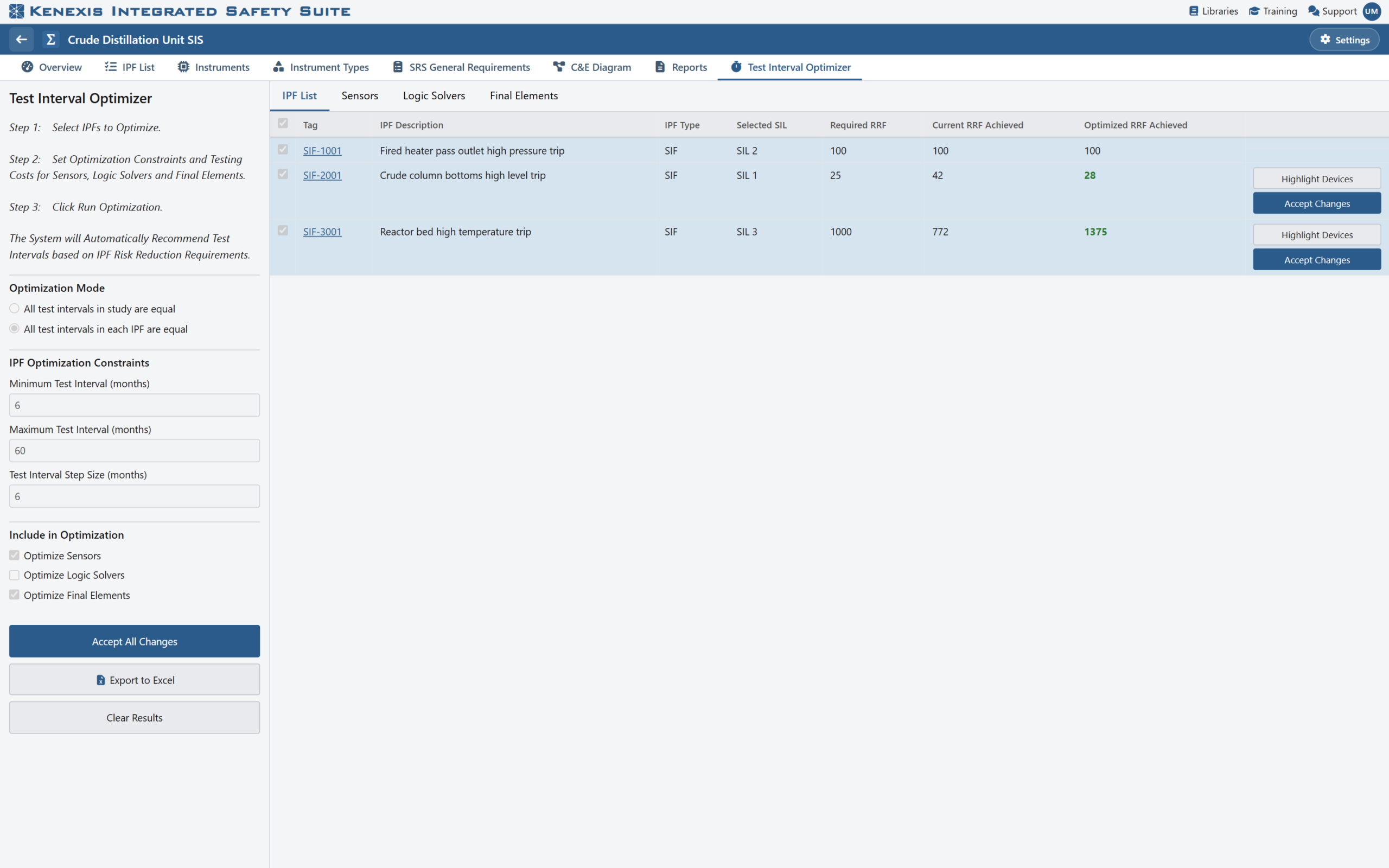
Results by function: current and optimized achieved RRF side by side, with green marking every target met. Nothing changes in the study until a change is accepted.
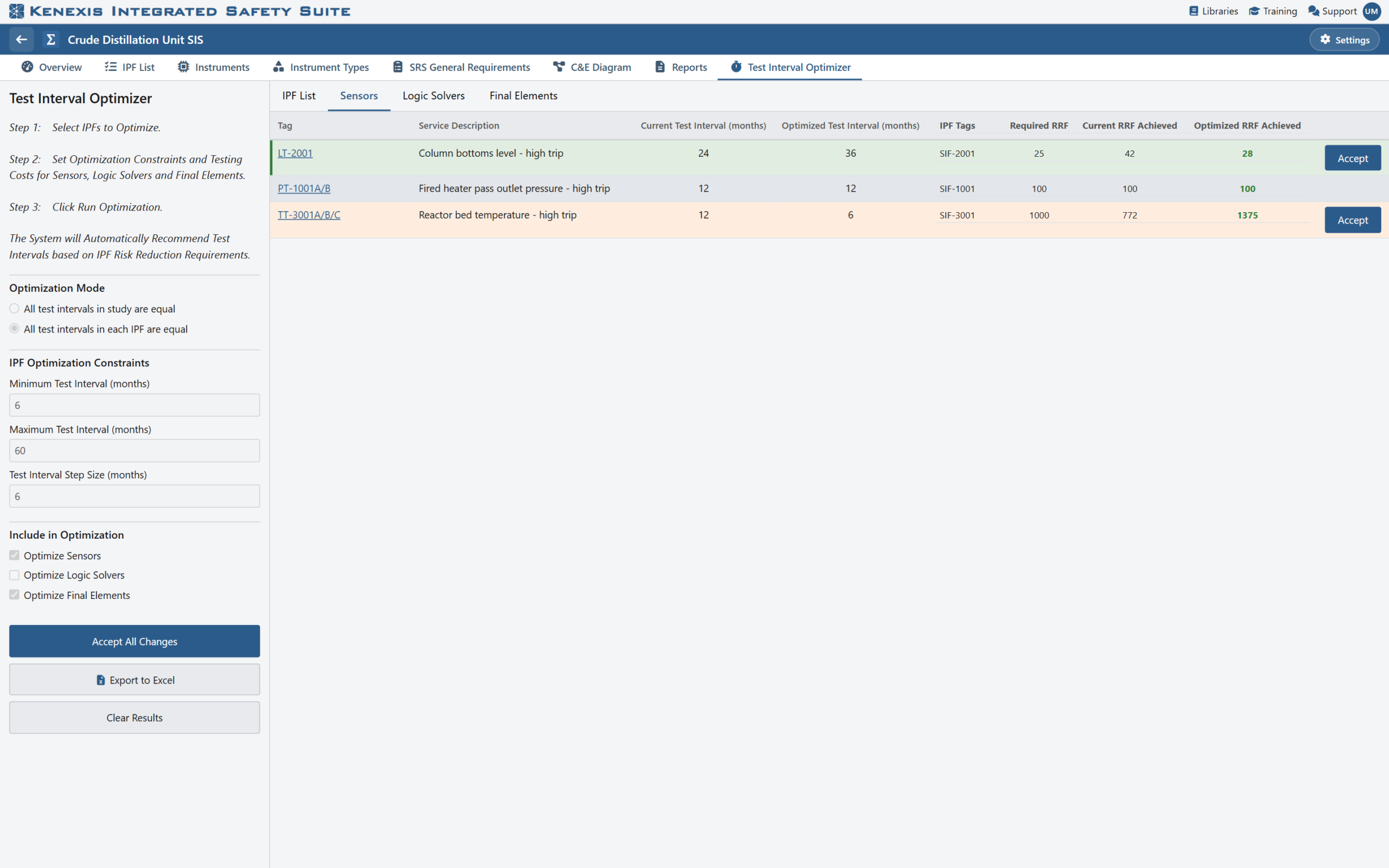
Results by device: current and recommended test intervals, with the selected function’s devices highlighted and the functions each device serves alongside.
Nothing is written to the study until you accept, and you choose how much: one device, one function, or Accept All Changes.
New: Export the Proposal to Excel
Export to Excel closes the loop. It turns the run on screen into a workbook named after the study and stamped with the export date and time, and it saves nothing to the study. The workbook holds three sheets:
- Summary: headed PROPOSED — these test intervals have not been applied to the study. It records who ran the optimizer and when, the strategy, the constraints and device categories used, how many functions and devices change, how many functions don’t meet target, and any items that were skipped. This is the page a manager reads.
- IPF List: every selected function with its required RRF and its current and optimized PFDavg, achieved RRF and achieved SIL, plus whether it meets its target and whether it changed. This is the page a reviewer checks.
- Devices: every sensor, logic solver and final element, with its current and optimized interval, the change in months, and the functions it serves. This is the page the maintenance planner builds the new schedule from.
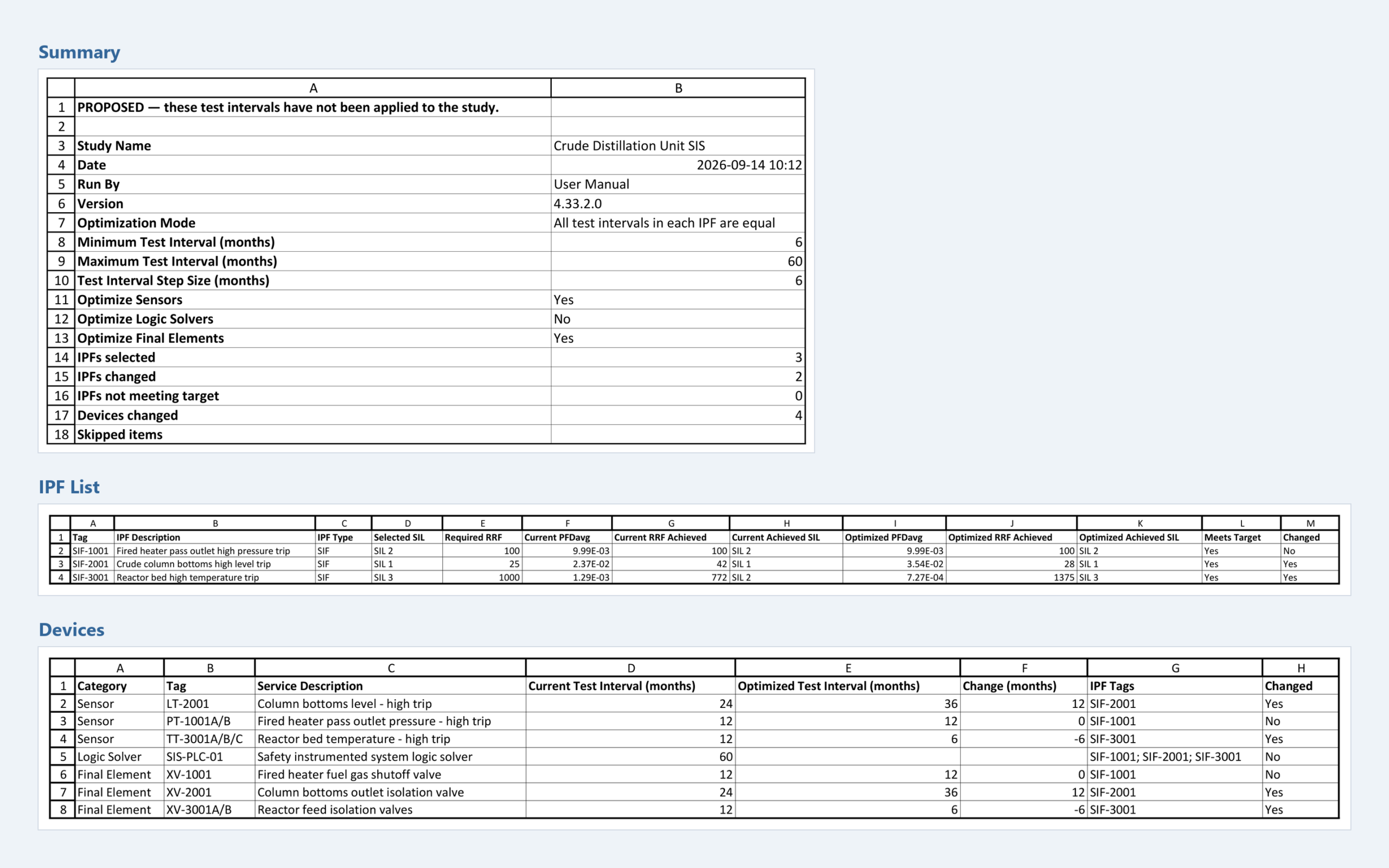
The exported workbook: a Summary headed PROPOSED, the IPF List with current and optimized performance, and the Devices sheet with current and optimized intervals.
The lists carry frozen headers and filters, so a reviewer can go straight to the devices that change, and anyone with Excel can open the file without a Kenexis® SIS login. The PROPOSED banner lets it travel through an MOC package, an approval chain or a client review without being mistaken for the study of record.
Reviewing a test-schedule change used to mean scheduling a meeting. Now it’s an attachment.
Share the Analysis, Protect the Study
The optimizer is most valuable when several people examine it: the process engineer, the reliability lead, the client’s own reviewer. In Kenexis® SIS, anyone with view-only access to a study can run the optimizer and export the proposal, while the controls that commit a change stay hidden. Only a user with edit rights can accept results, so the study of record stays exactly as its owner left it.
For international teams, the Test Interval Optimizer is fully available in English, Portuguese and Simplified Chinese, like the rest of Kenexis® SIS.
From Question to Approved Answer
Extending a test interval has two audiences: the engineer who has to prove it’s safe, and the manager who has to sign off. Kenexis® SIS serves both. The Test Interval Optimizer does the search with the study’s own calculation engine, and the Excel export puts the proposal in front of decision-makers, in a format they already use, before anything changes.
See the Test Interval Optimizer on your own kind of study. Contact Kenexis for a demonstration.