
Always Know Which Scenario You Are In
Kenexis® Open-PHA®‘s new scenario context bar keeps the deviation, cause and consequence in front of you — no matter how far right you scroll.
The widest worksheet in process safety
A HAZOP worksheet is one of the widest tables in engineering software, and for good reason. A single line of analysis has to carry the deviation, the cause, the consequence, every safeguard credited against it, the severity and likelihood before and after those safeguards, the risk ranking, whether a LOPA is required, the recommendations raised, and the team’s comments. Laid end to end, that is far more than any screen can show at once.
So you scroll. And the moment you scroll right to record a safeguard or raise a recommendation, the three columns that actually define the scenario — deviation, cause and consequence — slide off the left edge of the screen.
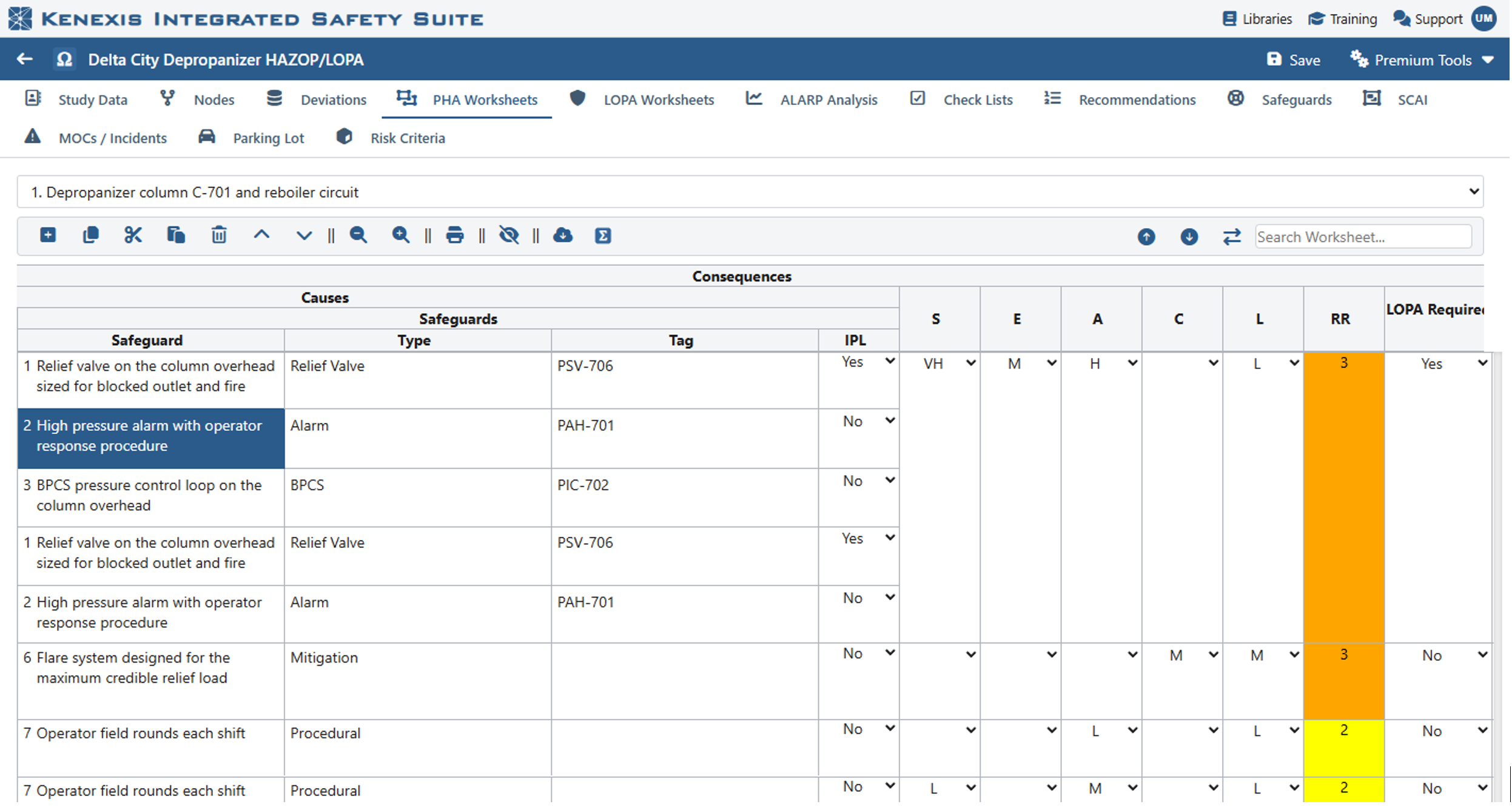
Working in the safeguards columns. The row is selected, but nothing on screen says which deviation, cause or consequence it belongs to.
Most of us have developed habits to cope. You scroll left to check, then scroll back. You memorize the row position. You keep a finger on the screen. In a facilitated session, with a room full of people waiting and the clock running, those habits are exactly where mistakes creep in — a safeguard credited against the wrong cause, a recommendation attached to the wrong consequence. In a hazard study, an entry in the wrong place is not a cosmetic problem.
A context bar that follows you
Kenexis® Open-PHA® now pins a slim context bar directly above the worksheet. It shows the deviation, cause and consequence for whichever cell you are working in, and it stays there however far right you scroll.
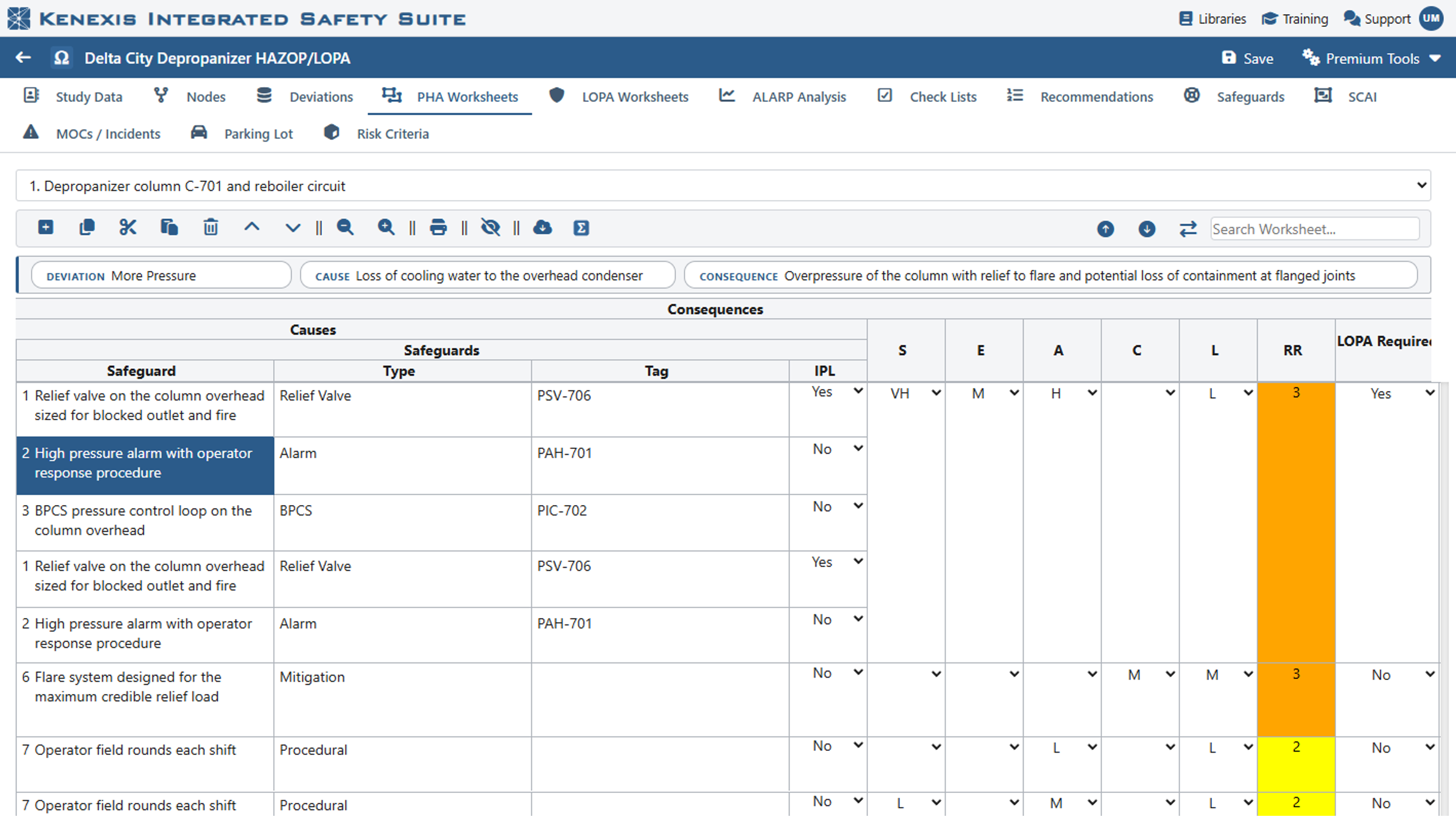
The same view with the scenario context bar switched on. The scenario is identified at a glance, even though its description columns are off-screen.
The bar follows your selection as you move, whether you navigate with the mouse or with the keyboard — so it keeps pace with fast, hotkey-driven scribing rather than lagging behind it. It reads the scenario from the worksheet’s own structure, which means it works the same whether your study is organized cause-first or consequence-first. And when a consequence description is long enough to be shortened in the bar, hovering over it shows the full text.
One consistent detail is worth knowing: where a column genuinely belongs to the consequence rather than to an individual cause — as recommendations and risk rankings often do — the bar shows a dash in the cause position instead of guessing. It tells you what the worksheet actually says.
Switched on per study, in one click
The context bar is a per-study preference, so you decide where it helps. Open Study Settings and turn on Scenario Context Bar; the change takes effect immediately, with no reload and no interruption to what you were doing. It is off by default, and because the setting is remembered for you rather than written into the study, switching it on never changes what a colleague sees in their own session.
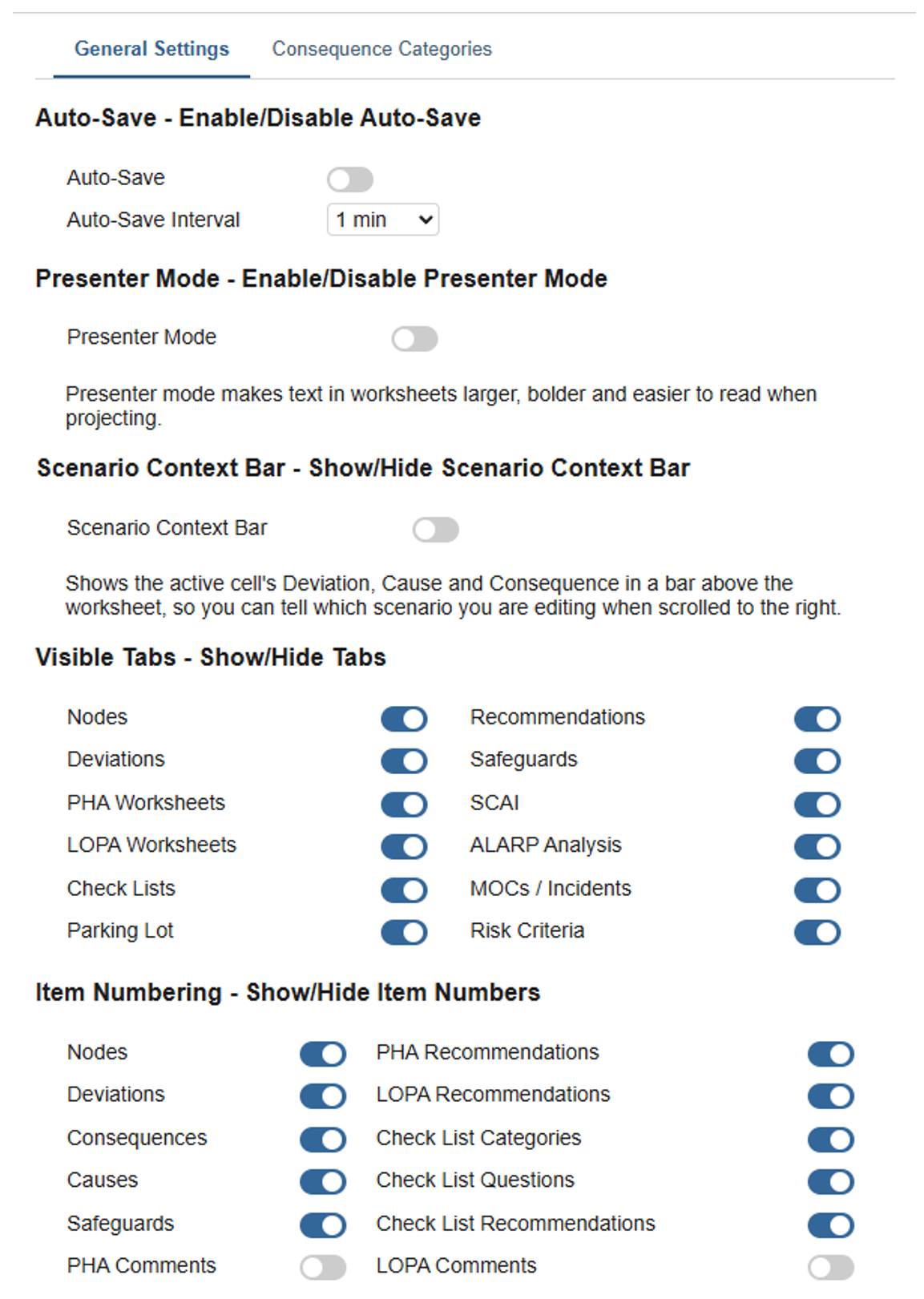
The Scenario Context Bar preference in Study Settings, alongside presenter mode and the other per-study display options.
The same release also draws a bolder separator between scenarios on the worksheet, so the boundary between one cause or consequence and the next is obvious as you scan down a long node.
Small change, fewer corrections
Features like this rarely make a product tour. They earn their place in the hundredth hour of a study, when the team is deep in a long node and the difference between the right row and the row above it is a scroll away. Keeping the scenario in view removes an entire category of small errors — and the rework that follows them.
The scenario context bar is available now to every Kenexis® Open-PHA® user in the Kenexis Integrated Safety Suite. Turn it on in Study Settings and see how quickly it becomes the setting you forget you switched on.